
If you do not know how to do these tasks, refer to the documentation for your workstation operating system.
This online help assumes that you have a basic knowledge of your workstation operating system and of working with software that presents information in windows. At a minimum, you should know how to:
| • | Use a mouse or keyboard to do basic tasks, such as choosing menu options and buttons. |
| • | Work with windows (selecting, moving, minimizing, restoring, maximizing, sizing, scrolling, closing, and so on). |
| • | Work with dialog boxes. |
If you do not know how to do these tasks, refer to the documentation for your workstation operating system.
Additionally, you need to understand how to use the WorkFlows client environment. The client is the framework that you use to open and navigate through various features.
The client workspace starts automatically when you first log in to the software. It includes forms, lists, toolbars, and a navigation bar that help you do tasks easily.
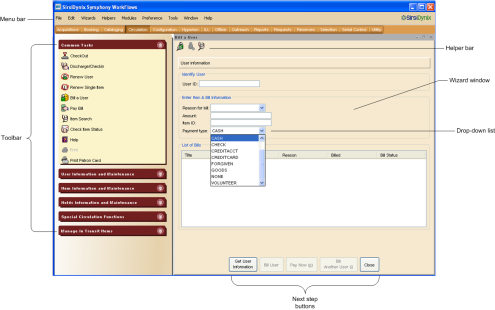
Here is a sample of the client workspace with a brief description of some of the key features referred to in this online help:
|
Feature |
Description |
|
Menu bar |
Choose options from the menu bar to do tasks or arrange your view. |
|
Toolbar |
Click buttons on the toolbar to do tasks or display additional tasks. |
|
Helper bar |
The helper bar is positioned horizontally across the top of the WorkFlows client interface, just below the active window’s title bar. Helpers make it easier to access necessary information needed by the current wizard. |
|
Wizard window |
This is where you do most of your work. In some screens, forms may display with a tab. |
|
Drop-down list |
Drop-down lists make selecting field values and policy values easier. The lists present valid values for the wizard fields. |
|
Next step buttons |
Next step buttons display at the bottom of a wizard window to show which actions can be taken at this time. |
© 2006-2016 Sirsi Corporation. All rights reserved.